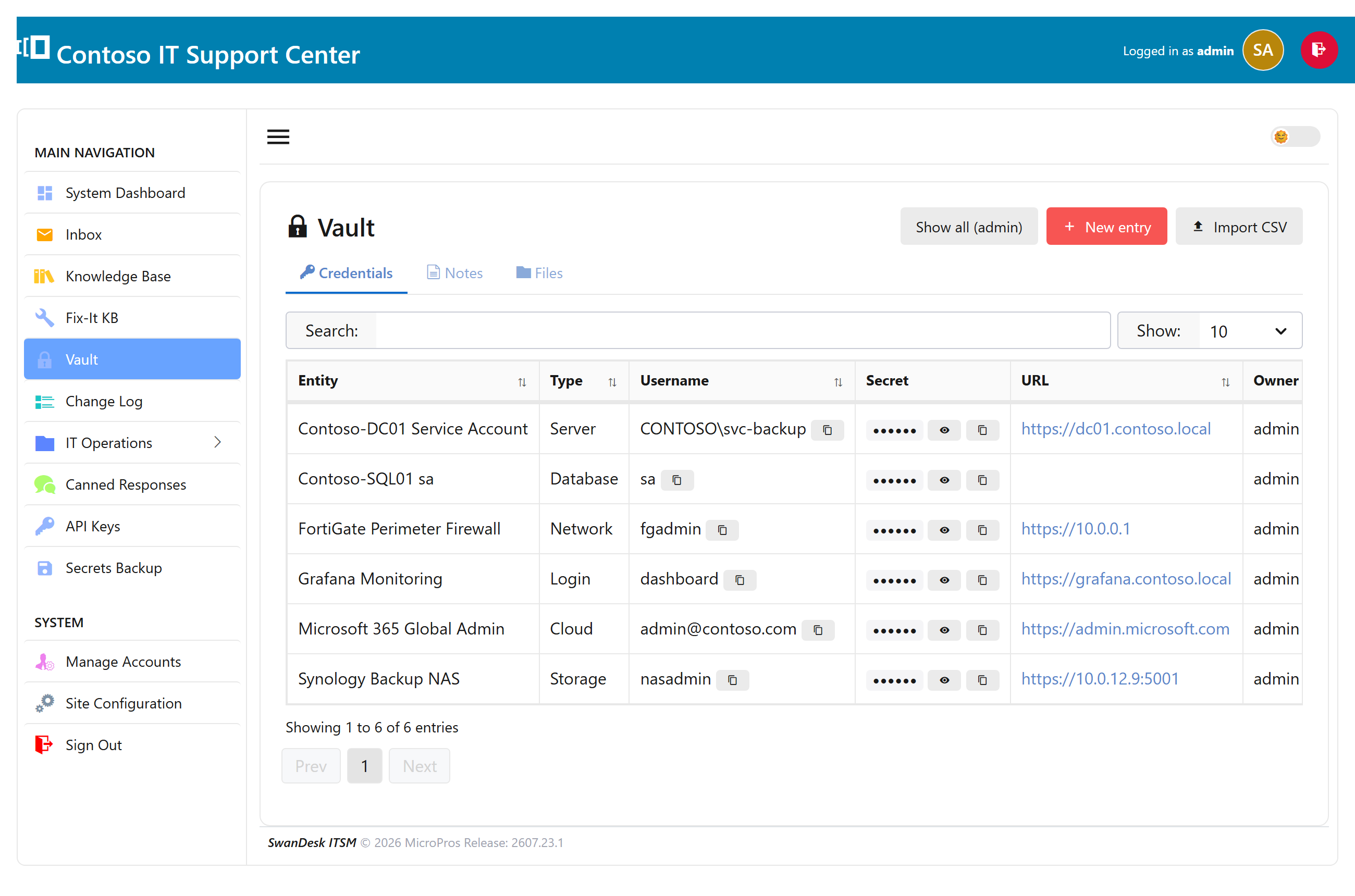
What the Vault is
The Vault is an encrypted store for the secrets your IT team shares — the admin password for a switch, the Wi-Fi PSK, a software license, a scanned contract. Instead of a spreadsheet or a sticky note, everything lives in SwanDesk, encrypted on your own server and revealed only to the people you choose.
Every user gets their own personal vault, and can share individual entries with specific teammates. The Vault is part of the Enterprise edition.
Passwords, notes & files
Open Vault from the sidebar and choose New. An entry can be:
- a credential — a title, username, password, URL, and notes;
- a secure note — free text, for anything that isn’t a login;
- a file — upload a document (a certificate, a key file, a scanned agreement) to keep it with the rest of the secret.
Passwords are hidden until you click to reveal them, and reveal auto-hides again after a few seconds. Values are encrypted at rest — they never appear in logs or backups in the clear.
Public demo note: the online demo disables revealing secrets, so you can browse how the Vault works without exposing sample data.
Who can see what
By default an entry is private to the person who created it. To let others use it, open the entry and share it with specific users — they’ll see it in their own vault, but can’t re-share or delete it.
So each person sees exactly two things: the entries they own, and the entries shared with them — nothing else.
Admin break-glass. A system administrator can, when genuinely needed, reach an entry they don’t own — for continuity if someone leaves the company. Break-glass access is deliberate and visible, not a silent backdoor.
Authenticator (2FA) codesEnterprise
The Vault can also hold the authenticator (2FA) code for an account — so when several people share a login that’s protected by an authenticator app, nobody has to pass a phone around. SwanDesk shows the current six-digit code, right next to the password.
Add an authenticator code to an entry
- Open the Vault and add or edit a credential.
- Find the account’s setup key. When a website turns on two-factor
and shows you a QR code, look for the option to enter a code manually or
show setup key. Copy that key — a block of letters and numbers (Base32), or
an
otpauth://link. - Paste it into the entry’s Authenticator key (2FA / TOTP) field and save.
- Use the code. The live six-digit code, with a countdown, now appears on that entry in the vault list. Click it to copy when you sign in.
SwanDesk works with standard authenticator apps (the same six-digit, 30-second codes as Google Authenticator, Microsoft Authenticator, and Authy). The secret is encrypted and never leaves your server. To remove it later, edit the entry and tick Remove authenticator.
Note: this is different from signing in to SwanDesk itself. Login two-factor is a separate feature that emails you a one-time code.