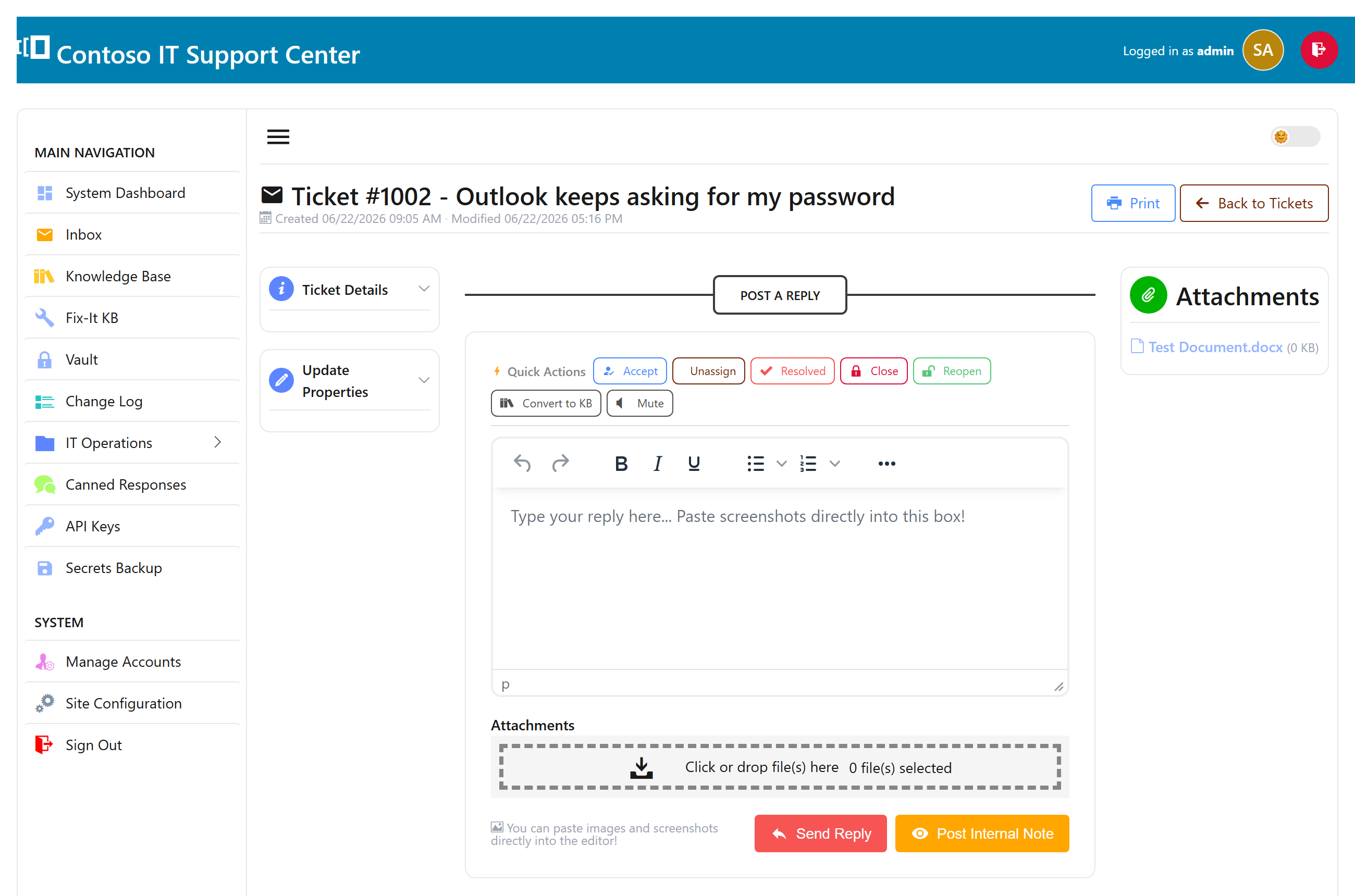
The ticket queue
Every request — whether someone emailed you, filled in the portal, or a rep typed it in — lands in the ticket queue. The sidebar gives you ready-made views:
- Open tickets — everything still being worked.
- My assignments — just the tickets assigned to you.
- Unassigned — new work that nobody owns yet.
- Closed tickets and all tickets for history and search.
Each view is a sortable, searchable table — click a column to sort, or type in the search box to filter by subject, requester, or number.
Create a ticket
Tickets appear three ways:
- From email. Anything sent to your support mailbox becomes a ticket automatically — see Email ticketing.
- From the portal. Customers can sign in and open a ticket themselves.
- By hand. Click New ticket, choose the requester, pick a department and priority, write the details, and save.
Statuses, priority & SLAs
A ticket is open until it’s resolved, then closed. Give each one a priority so the urgent things rise to the top.
If you set up SLAs (service targets) in Settings, SwanDesk tracks a due time on each ticket and flags anything overdue — the dashboard shows a live “SLA overdue” count so nothing slips.
Assign & collaborate
Assign a ticket to a rep, a department, or both. Managers see every ticket; reps see their department’s work and their own assignments.
Need another person in the loop? Add them as a collaborator (CC) and they’ll be kept on the thread. A customer’s tickets are matched by their email address, so replies from any of their addresses land on the right ticket.
Work the conversation
Open a ticket to see the whole conversation in one place: the message thread, a reply box, and a details panel with the requester, department, priority, and assets.
- Reply to answer the customer — your message emails out to them.
- Internal note to leave a comment only your team can see.
- Canned responses and knowledge-base links save typing.
- Print a clean copy of the ticket for records or hand-off.